Lost important WhatsApp chats? Follow our guide to recover deleted messages using backups on Android and iPhone. Act fast to save your data!

ย
#WhatsApp
Losing a WhatsApp conversation can be distressing ๐, especially when the messages hold sentimental value or crucial information. Fortunately, deleted chats are often recoverable ๐. This guide outlines a clear, step-by-step process to retrieve them without the need for rushed decisions or risky third-party tools. The secret lies in your backups ๐พ. While recovery is difficult without one, many users have automatic backups enabled without realizing it. A crucial first step: stop using the app immediately ๐. Incoming messages can overwrite old data, effectively destroying your chances of recovery โ ๏ธ.
1.ย Check for an existing backup ๐
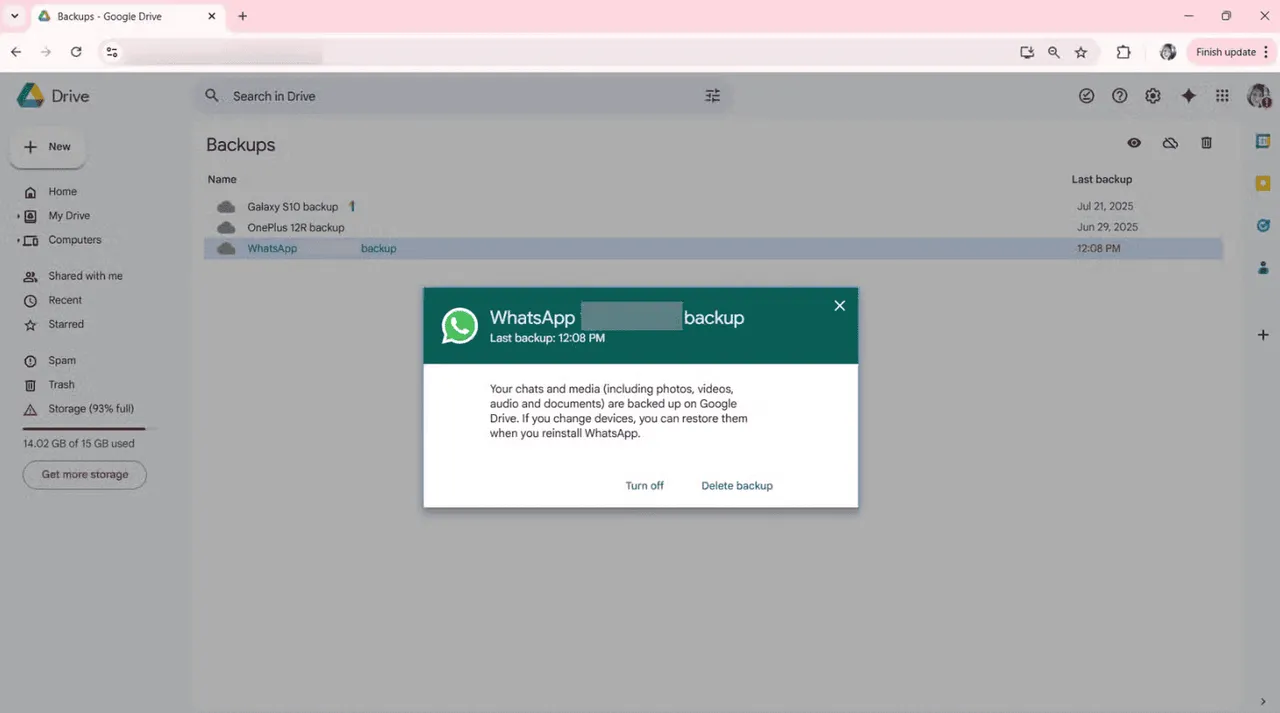
Open WhatsApp and navigate to the settings menu โ๏ธ. Select โChatsโ and then โChat Backup.โ Look for the date and time of the last save ๐. This timestamp is critical; it must be older than the message you deleted. If the backup is newer than the deletion, the old chat history has unfortunately been overwritten โณ.
On Android devices, backups are stored on Google Drive โ๏ธ and local internal storage ๐. On iPhone, backups are exclusively saved to iCloud โ๏ธ. Ensure you are signed into the exact Google or iCloud account associated with your WhatsApp previously ๐ง.
#WhatsApp
2. Prepare your phone ๐ ๏ธ
To trigger a restore, you must uninstall WhatsApp from your device ๐๏ธ. While deleting the app might seem alarming, your account status remains safe. Simply press and hold the app icon, select the option to delete or uninstall, and confirm the action. Removing the app clears the cached data, allowing the system to fetch information fresh from your backup ๐. Before proceeding, verify you have a stable internet connection; a poor signal can corrupt or interrupt the restoration process ๐ถ.
3.ย Reinstall WhatsApp ๐ฒ
Head to your respective app store ๐ช and reinstall WhatsApp. Launch the application and agree to the terms of service. You will be prompted to enter your phone number and verify it via a code sent by text ๐ฌ. Once your identity is confirmed, WhatsApp will automatically scan for an available backup ๐.
4.ย Restore the backup ๐ฅ
When prompted to restore your chat history, tap โRestoreโ โ . The duration of this process depends on the file size and your internet speed. Crucially, do not close the app or lock your screen while the restoration is in progress ๐ซ๐. Allow the process to finish completely.
Once finished, tap โNext.โ Your chat history should reappear up to the point of the last backup โจ. Keep in mind that any messages sent or received after that backup date will not be recovered.
5.ย For Android users only ๐ค
If Google Drive comes up empty, you may still have a local backup saved on your device ๐. Open your File Manager app and navigate to the WhatsApp folder, then select โDatabases.โ You will see files labeled with dates. Select the file dated just prior to the accidental deletion.
Rename this file to msgstore.db.crypt14 โ๏ธ. Ensure the file name is exact and contains no extra text. Once renamed, repeat the uninstall and reinstall process. When you tap restore, the app should prioritize this local file ๐.
6. For iPhone users only ๐
iPhone users must rely strictly on iCloud backups to restore WhatsApp chats; local file manipulation is not an option on iOS ๐.
Check your iCloud storage capacity ๐ฆ. If your storage is full, the restore may fail. Additionally, ensure WhatsApp has permission to access iCloud Drive in your settings, and that the service was active at the time the backup was created. If the backup file is valid, the restore should proceed smoothly ๐ง.
What if no backup exists? โ
If no backup existed prior to the deletion, WhatsApp cannot recover the messages โ. The platform does not store chat logs on its servers for privacy reasons. Exercise extreme caution regarding third-party software claiming โmagicโ recovery solutions โ ๏ธ. Most are ineffective, and many pose serious security risks to your personal data ๐ก๏ธ.
How to avoid data loss in the future ๐ก๏ธ
If your WhatsApp conversations are vital to you, proactive backup settings are essential to prevent future heartache ๐ก. Open WhatsApp, tap the menu or settings icon, navigate to โChats,โ and select โChat Backup.โ Change the frequency to โDailyโ ๐๏ธ to ensure minimal data loss in an emergency. It is also wise to set backups to occur over Wi-Fi ๐ถ to preserve mobile data, and always ensure you have sufficient cloud storage available โ๏ธ.
Losing digital conversations is stressful, but recovery is often possible with the right steps ๐. With a valid backup, your messages can be retrieved. If not, setting up a robust backup schedule today is the best defense for tomorrow ๐ก๏ธ.