Laptop & PC
Elevate Your Laptop Audio: Simple Tips for Better Sound Quality 🔊💻✨
Tired of tinny laptop speakers? Learn how to boost your sound quality with external speakers, smart devices, and simple setup tweaks for a better experience.

#Laptop Audio
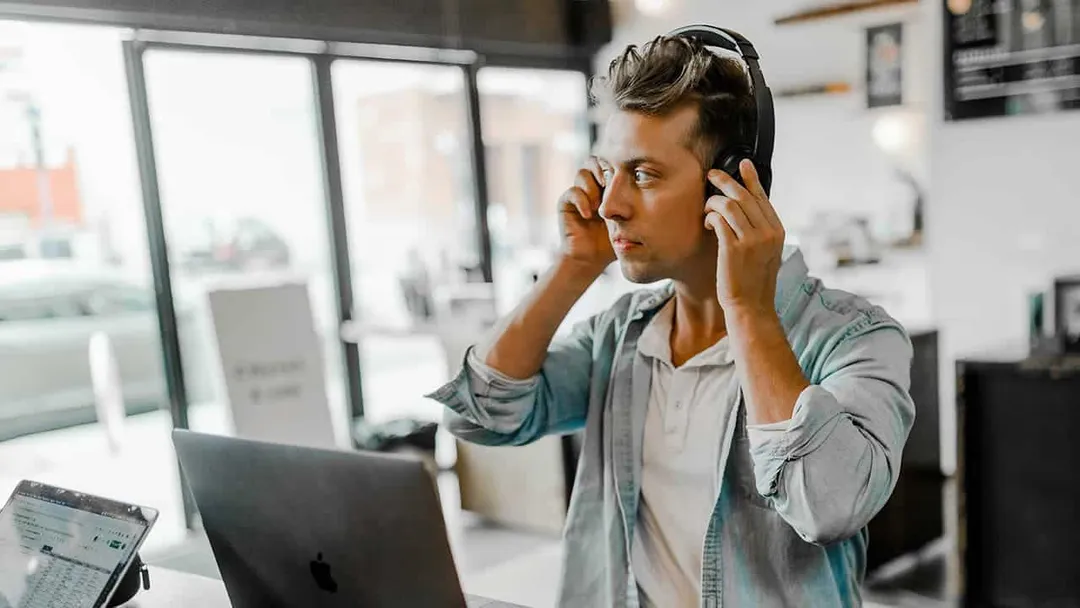
It is a nearly universal truth that laptop speakers leave much to be desired. The complaints are consistent: tinny vocals, nonexistent bass, and generally muddy performance 📉. But you don’t have to settle for a subpar listening experience. There are several effective ways to unlock your machine’s sonic potential 🚀. Let’s explore how to boost your laptop’s output and get the most out of your audio setup 🎵.
Upgrade Your Laptop Audio with External Speakers 📢

#Laptop Audio
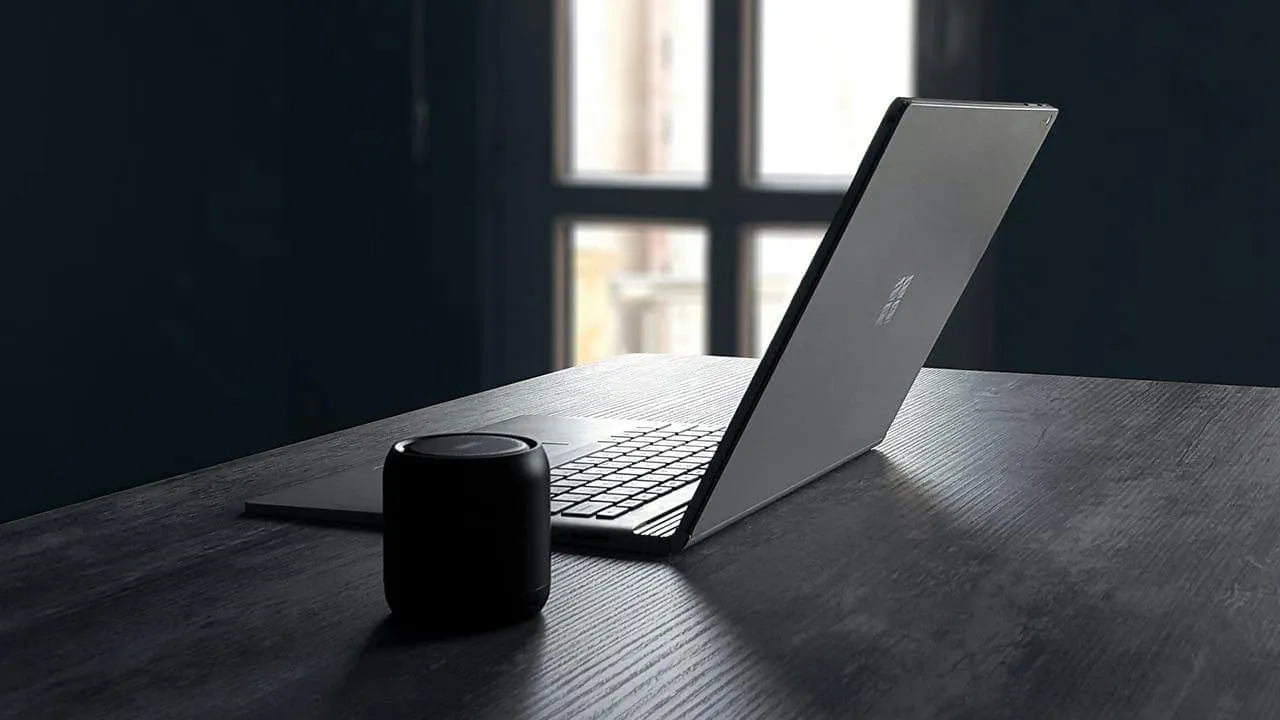
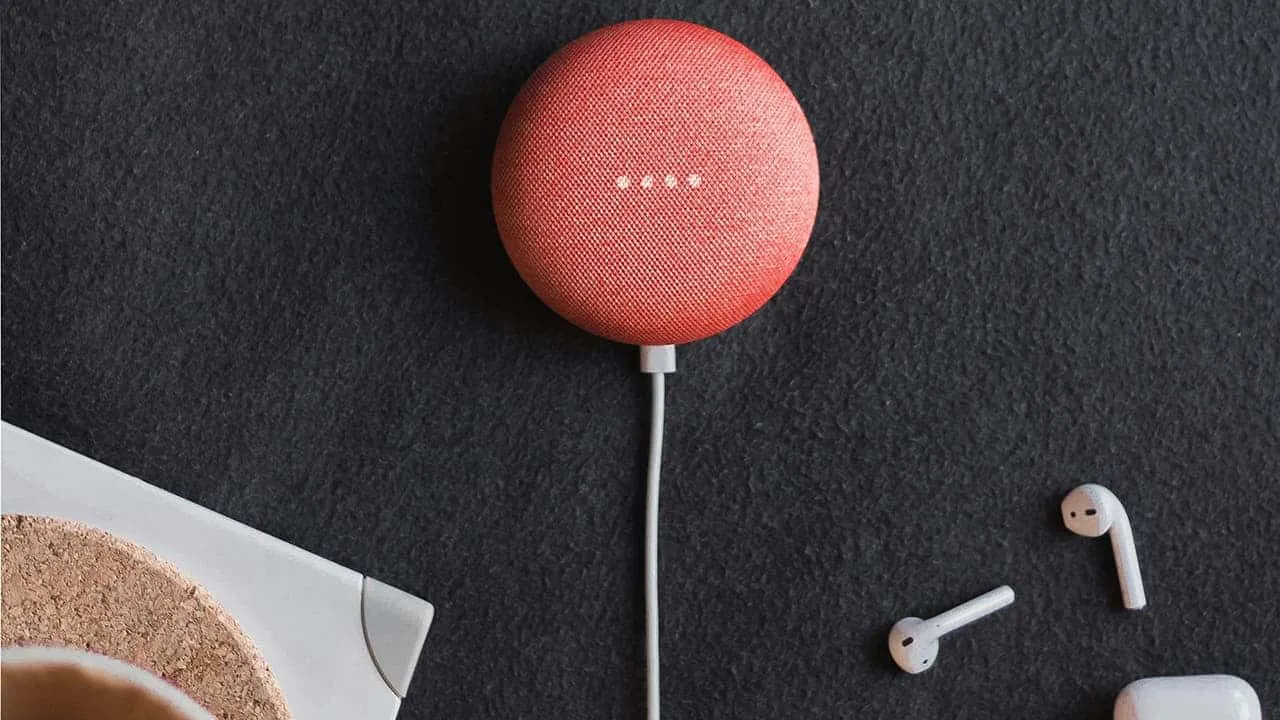
The quickest route to better sound is simply bypassing the internal hardware entirely. Portable Bluetooth speakers are an excellent fix for on-the-go listening, offering a wireless, hassle-free connection 📶. If you prefer a stationary setup, smart speakers like Apple’s HomePod or Google Nest deliver impressive fidelity 🏠🍏. Just keep in mind that wireless connections can occasionally introduce slight latency or compression artifacts ⚡.
Leverage Your Existing Stereo System 📻
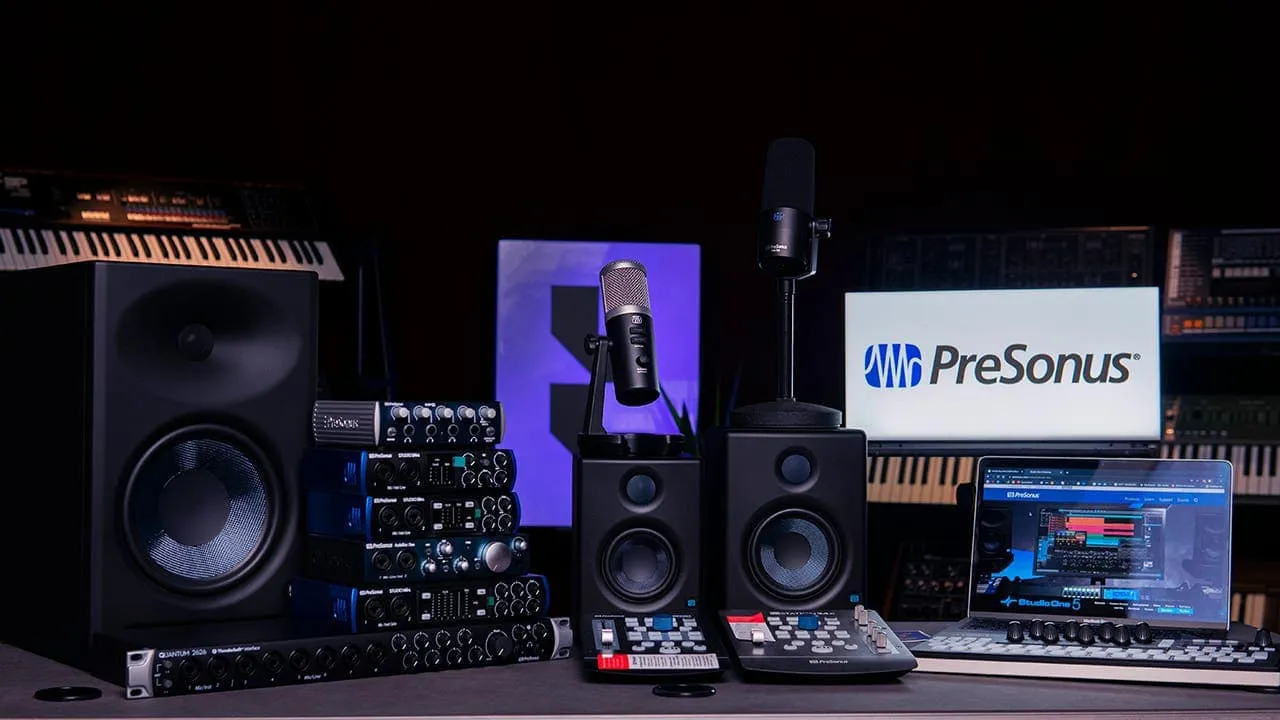
Don’t overlook the gear you already own; that dust-gathering stereo system can be given a second lease on life 🧹. Utilizing your laptop’s headphone jack to connect to a receiver can offer an immediate, noticeable upgrade 🔌. For the audiophiles out there, adding a Digital-to-Analog Converter (DAC) to the chain will bridge the gap between digital files and analog warmth for superior results 💎.
#Stereo System
Invest in Dedicated Desk Speakers 🖥️🔊
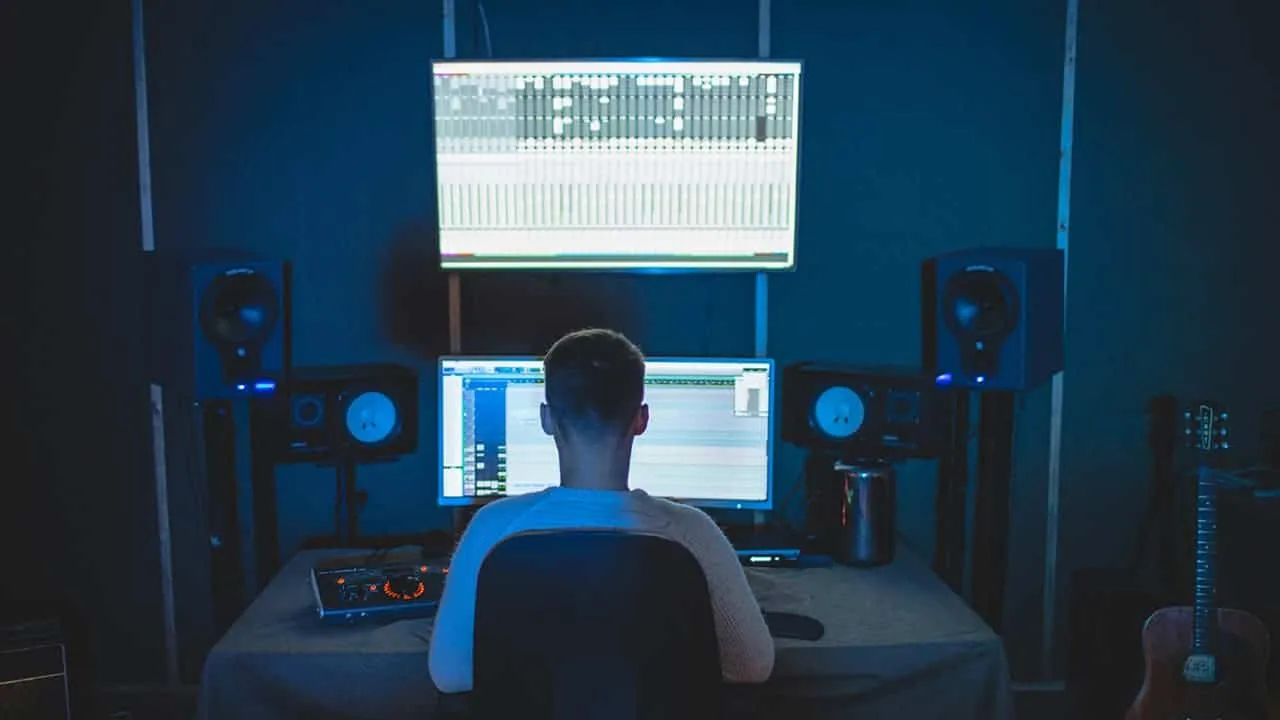
If you are anchored to a desk for most of the day, dedicated speakers can significantly elevate your audio experience. Almost any desktop set will outperform even high-end built-in laptop drivers. The market is vast, so weigh your budget against your sonic preferences 💰. It is always wise to audition speakers in person if the opportunity arises 👂.
For those seeking budget-friendly value, 2.1 systems like the Logitech Z407 or Creative Pebble Plus offer respectable performance and Bluetooth utility 🎶. If you desire a more aesthetic or powerful setup, consider the iconic Harman Kardon SoundSticks 4 or the neutral, accurate Pioneer DJ DM-50D studio monitors 🎼.
#Desk Speakers
Active speakers—units with built-in amplification—provide another versatile option, often featuring various inputs for different devices ⚡. Brands like Klipsch (The Fives) and Q Acoustics (M20) produce exceptional active speakers across various price points 🏷️.
Ultimately, the best choice depends entirely on your specific ear and your budget 🎯.
Enjoy Better Sound with Headphones 🎧
Sometimes, the best acoustic environment is a personal one. High-quality headphones, whether wired or wireless, will drastically outshine your laptop’s speakers 🌟.
#Better Sound
Comfort is paramount, particularly for extended sessions 😌. Open-back headphones are worth considering; they allow airflow for a wider soundstage, though they do leak sound 🌬️. If you treat them like near-field speakers in a quiet room, this leakage is rarely an issue. For true high-fidelity, pair premium headphones with a dedicated amp or DAC to unlock their full potential 🔋.
Update Your Audio Drivers ⚙️🛠️
Sometimes the bottleneck isn’t hardware, but software. Outdated drivers can strangle sound quality, so updating them is a crucial troubleshooting step. Here is how to ensure your system is communicating correctly:
Check for updates using your computer’s command center 🖥️
Many pre-built systems include proprietary software to manage system health. Look for a “command center” or similar application from your manufacturer and check for specific audio driver updates there 🔄.
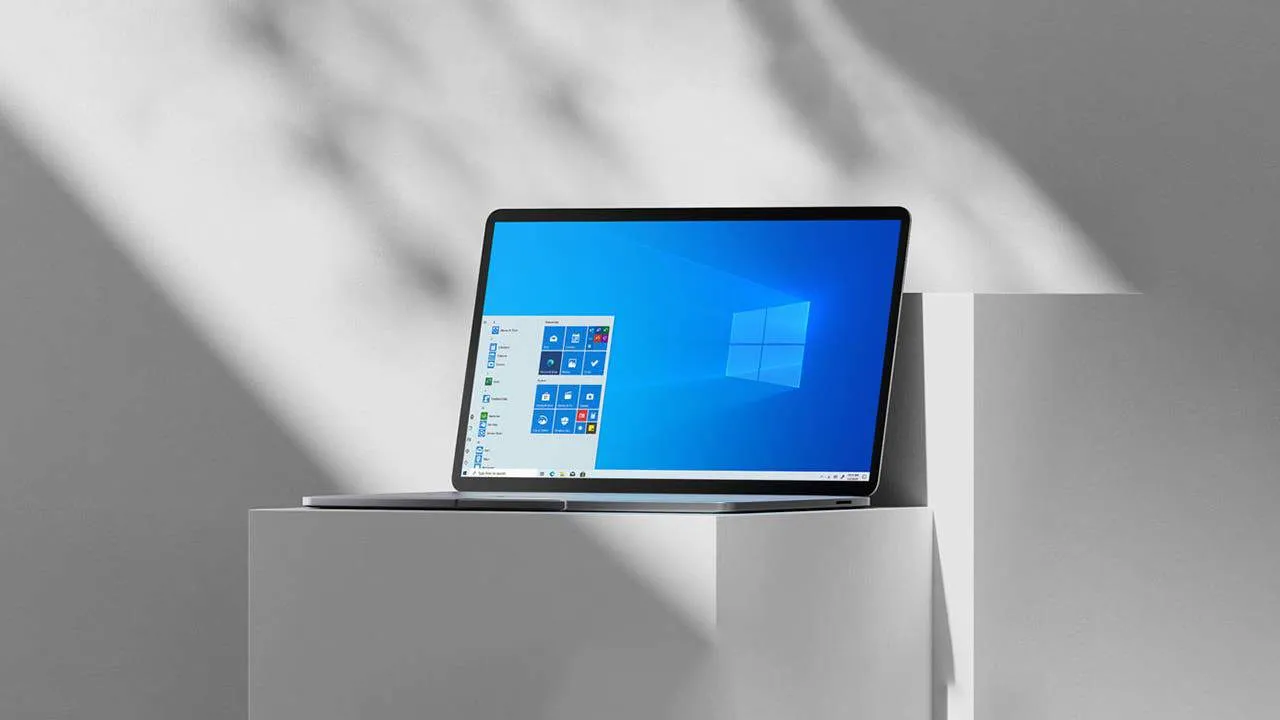
Use Windows Device Manager 🪟
#Deive Manager