Microsoft
Microsoft has officially ended support for Windows 10 🛑💻,

Microsoft has officially ended support for Windows 10 🛑💻, but here is how you can secure an extra year of updates for free 🕒🛡️
Are you still relying on Windows 10 for your daily computing? If so, this is crucial: As of October 14, Microsoft shifted the software into its “end of life” phase ⏳. While your PC won’t suddenly stop working, the operating system will no longer receive vital security updates by default 🛑. To keep your data safe, you are essentially left with three paths forward:
If your hardware is compatible, you can simply upgrade to Windows 11 for free 🆓🚀.

#Microsoft
You can purchase a new machine with Windows 11 pre-installed (or switch ecosystems entirely to a Mac or Chromebook) 🍎💻.
You can hold off on Windows 11 for now and enroll in Extended Security Updates (ESU), effectively kicking the can down the road for another year 🗓️🏃♂️.
We are going to focus on that third option because it is significantly easier than it sounds—and, in many cases, can now be done without spending a dime 💸✨. Here is the step-by-step guide to keeping Windows 10 on your PC safe… at least for the time being 🛡️🛠️.
How to sign up for Windows 10 Extended Security Updates on your computer 🖥️📝
It is fair to question Microsoft’s decision to sunset Windows 10 when it still functions perfectly on older hardware 🤔. However, running an OS without periodic security patches is a gamble; your PC becomes more vulnerable to malware with every passing week 🦠⚠️. Enrolling in the Extended Security Updates (ESU) program grants you a one-year safety net to keep using Windows 10 securely 🛡️✅.
Microsoft initially indicated that this 12-month extension would come with a $30 fee 💰. While paying is still an option, a free pathway has opened up for Windows 10 users in the US 🇺🇸🆓. Here is how to make it happen.

#Microsoft
Step 1: Ensure your PC is fully updated 🔄✅
First, verify that your current setup is current. Navigate to Settings > System > About and scroll down to check your version 📋. If you aren’t on the latest version, take a moment to install all available Windows 10 updates before proceeding ⏳.
Step 2: Verify you are using an administrator account 👤🔐
If your computer is shared among a household, you need to be signed in with the administrator account to make these changes. This is typically the primary account created on the device 🔑. You can confirm you have the right permissions by looking for the word “Administrator” under your name in Settings > Your Info 👤⚙️.
Step 3: Check your Windows 11 eligibility 🔍💻
If you see an option to upgrade to Windows 11, we highly recommend taking it. It is free, and it permanently solves the support issue ✨. However, if you prefer to stay put or your hardware isn’t compatible, follow the steps below to secure your updates 🛡️.
Step 4: Enroll in the ESU program 📝✨
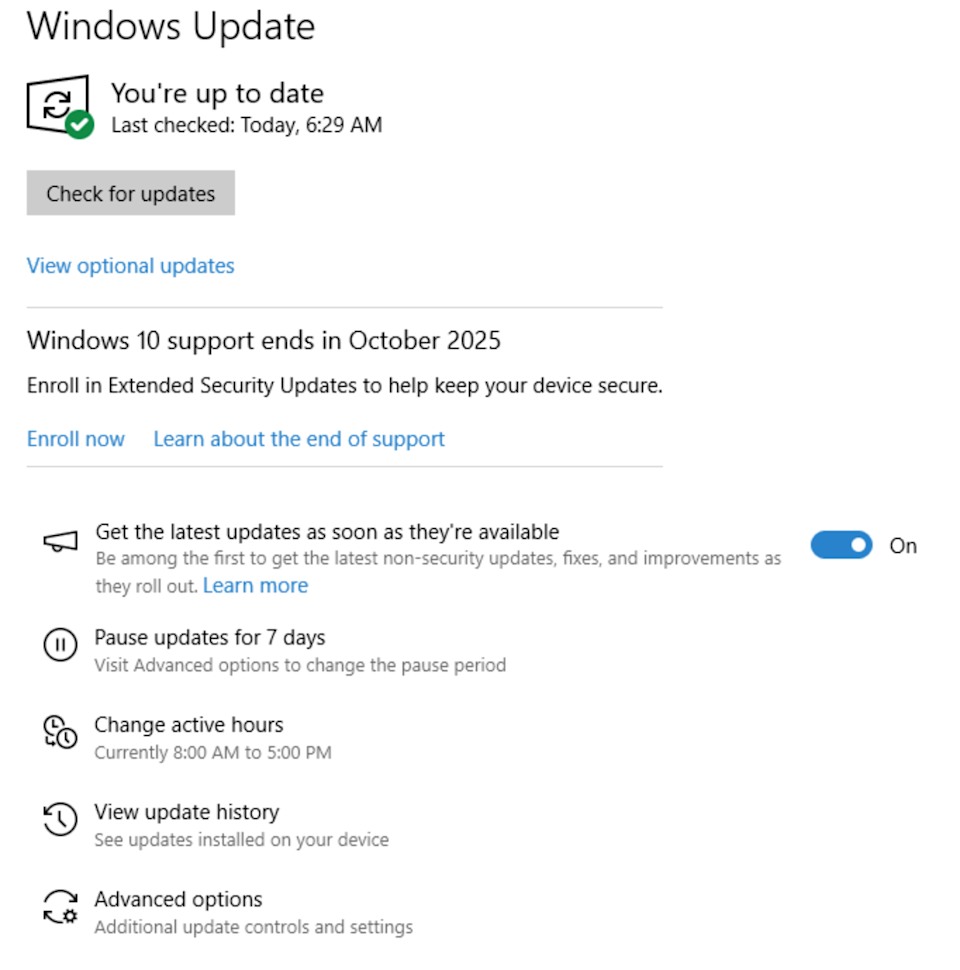
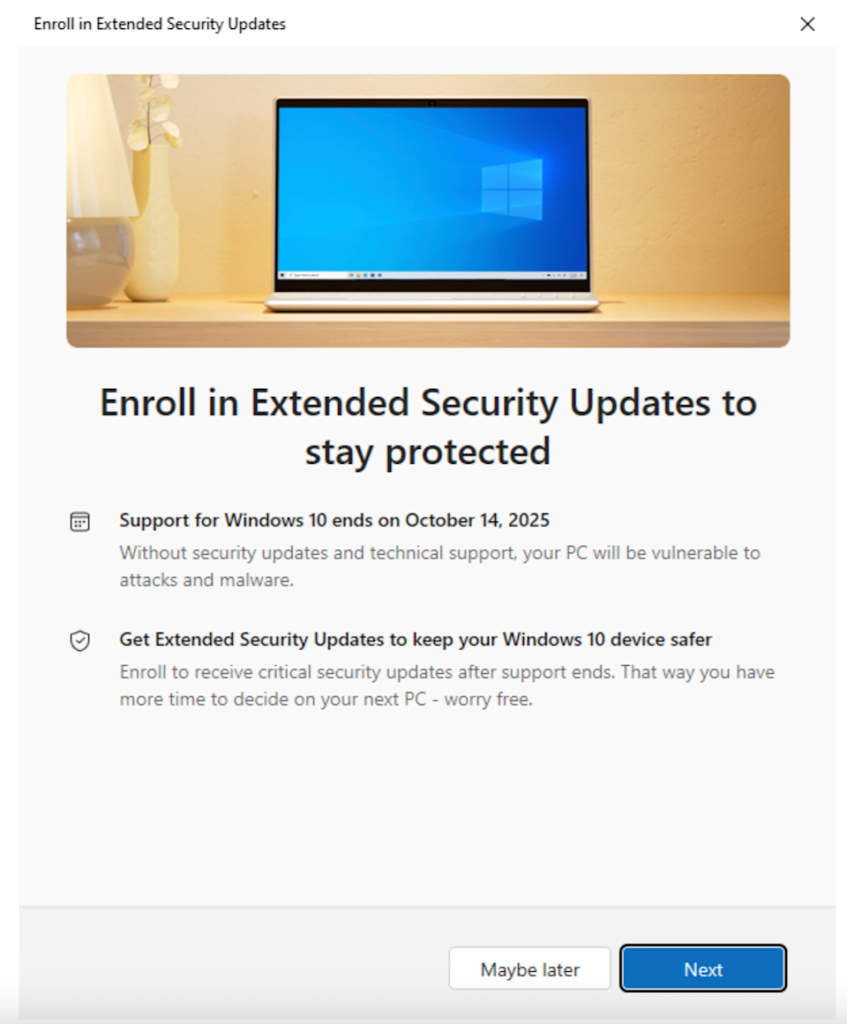
To sign up, head to Settings > Update & Security. Look for the “Enroll Now” link, as shown in the image below 🔗. Once again, if your system meets the requirements for Windows 11, you may be nudged to download that instead—which is generally the better long-term move 🚀.
However, if you proceed with the ESU, be aware that the free option comes with a few strings attached for US users 🇺🇸❗ (European users receive this benefit without these conditions 🇪🇺). First, you must link your Windows login to a Microsoft cloud account ☁️🔗. Many users have likely already done this through services like Office 365, OneDrive, or GamePass 🎮. If you have strictly maintained a local offline login for privacy, the “cost” of this free year is joining Microsoft’s cloud ecosystem 🌐.
The second caveat is storage 💾. The free backup included with this offer is capped at 5 GB 📦. If you exceed that, you will be prompted to pay for OneDrive services 💳. Fortunately, you can manage this by going to Settings > OneDrive and toggling off backup options for heavy folders like Documents, Pictures, and Videos to stay under the free limit 📁🚫.
Once signed in, a pop-up window will appear asking to “Add this device to receive Extended Security Updates.” Simply click Add Device, then click Done ✅🖱️.
A quick credit: We utilized a screenshot from the *Explaining Computers* YouTube channel 📺, as our test unit was already synced to the cloud and bypassed the splash screen options. We recommend their full video if you want a deeper technical dive into the process 📽️🧠.
That is it—you are set (until next year) 🎉📅
You have successfully bought yourself 12 months to decide on a permanent upgrade path or a new computer 💻🙌. If the situation changes over the next year, we will update this guide with your next best steps 🆙🔔.