Microsoft

Microsoft has officially ended support for Windows 10 ,

Published

on

Microsoft has officially ended support for Windows 10 , but here is how you can secure an extra year of updates for free
Are you still relying on Windows 10 for your daily computing? If so, this is crucial: As of October 14, Microsoft shifted the software into its “end of life” phase . While your PC won’t suddenly stop working, the operating system will no longer receive vital security updates by default . To keep your data safe, you are essentially left with three paths forward:

If your hardware is compatible, you can simply upgrade to Windows 11 for free .

#Microsoft

You can purchase a new machine with Windows 11 pre-installed (or switch ecosystems entirely to a Mac or Chromebook) .
You can hold off on Windows 11 for now and enroll in Extended Security Updates (ESU), effectively kicking the can down the road for another year .
We are going to focus on that third option because it is significantly easier than it sounds—and, in many cases, can now be done without spending a dime . Here is the step-by-step guide to keeping Windows 10 on your PC safe… at least for the time being .
How to sign up for Windows 10 Extended Security Updates on your computer
It is fair to question Microsoft’s decision to sunset Windows 10 when it still functions perfectly on older hardware . However, running an OS without periodic security patches is a gamble; your PC becomes more vulnerable to malware with every passing week . Enrolling in the Extended Security Updates (ESU) program grants you a one-year safety net to keep using Windows 10 securely .

Microsoft initially indicated that this 12-month extension would come with a $30 fee . While paying is still an option, a free pathway has opened up for Windows 10 users in the US . Here is how to make it happen.

#Microsoft

Step 1: Ensure your PC is fully updated
First, verify that your current setup is current. Navigate to Settings > System > About and scroll down to check your version . If you aren’t on the latest version, take a moment to install all available Windows 10 updates before proceeding .
Step 2: Verify you are using an administrator account
If your computer is shared among a household, you need to be signed in with the administrator account to make these changes. This is typically the primary account created on the device . You can confirm you have the right permissions by looking for the word “Administrator” under your name in Settings > Your Info .
Step 3: Check your Windows 11 eligibility
If you see an option to upgrade to Windows 11, we highly recommend taking it. It is free, and it permanently solves the support issue . However, if you prefer to stay put or your hardware isn’t compatible, follow the steps below to secure your updates .
Step 4: Enroll in the ESU program
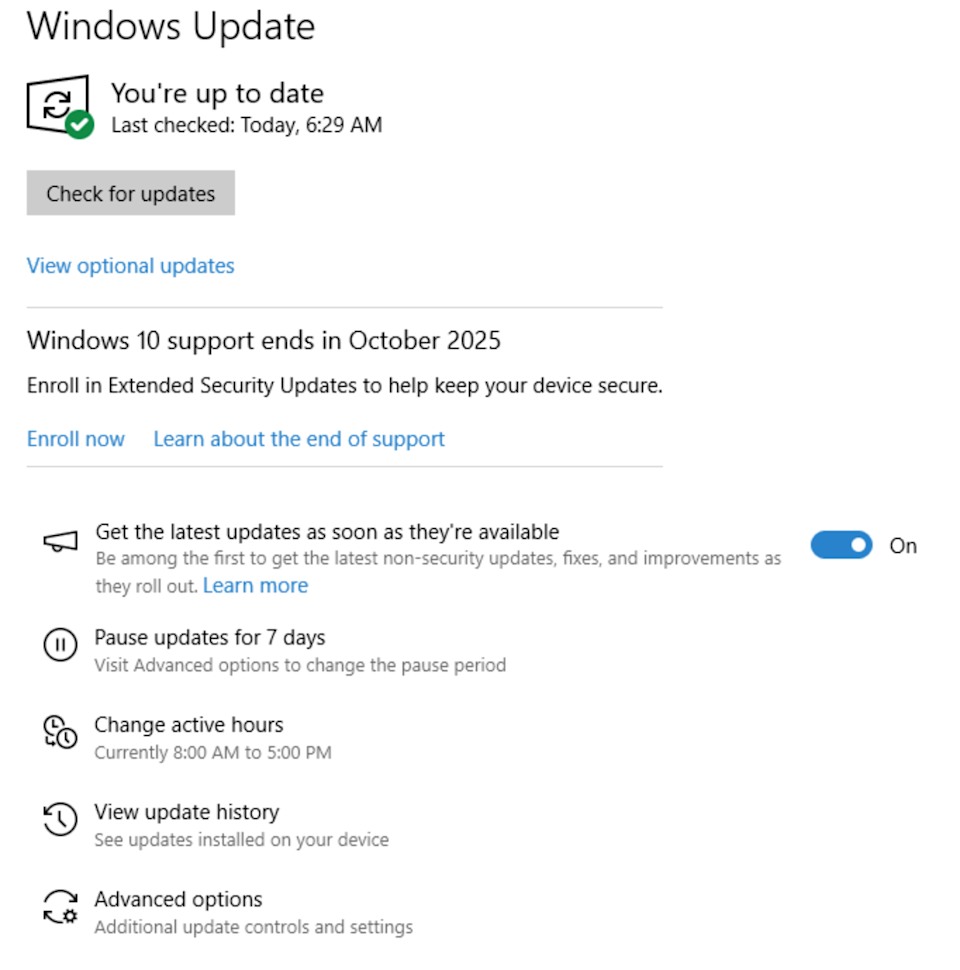
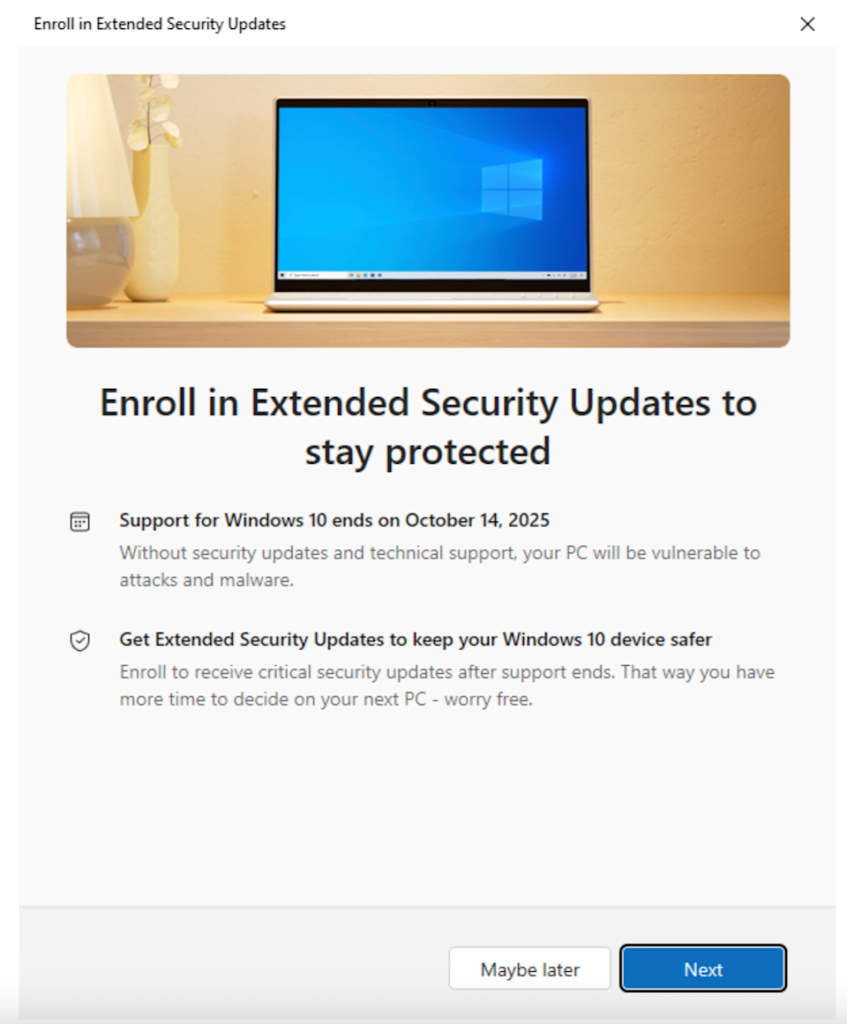
To sign up, head to Settings > Update & Security. Look for the “Enroll Now” link, as shown in the image below . Once again, if your system meets the requirements for Windows 11, you may be nudged to download that instead—which is generally the better long-term move .
However, if you proceed with the ESU, be aware that the free option comes with a few strings attached for US users (European users receive this benefit without these conditions ). First, you must link your Windows login to a Microsoft cloud account . Many users have likely already done this through services like Office 365, OneDrive, or GamePass . If you have strictly maintained a local offline login for privacy, the “cost” of this free year is joining Microsoft’s cloud ecosystem .
The second caveat is storage . The free backup included with this offer is capped at 5 GB . If you exceed that, you will be prompted to pay for OneDrive services . Fortunately, you can manage this by going to Settings > OneDrive and toggling off backup options for heavy folders like Documents, Pictures, and Videos to stay under the free limit .
Once signed in, a pop-up window will appear asking to “Add this device to receive Extended Security Updates.” Simply click Add Device, then click Done .
A quick credit: We utilized a screenshot from the *Explaining Computers* YouTube channel , as our test unit was already synced to the cloud and bypassed the splash screen options. We recommend their full video if you want a deeper technical dive into the process .
That is it—you are set (until next year)
You have successfully bought yourself 12 months to decide on a permanent upgrade path or a new computer . If the situation changes over the next year, we will update this guide with your next best steps .

Leave a Reply

Your email address will not be published. Required fields are marked *

Trending

© Copyright 2026 | All rights reserved | Technews89.com